








Printing Images (Digital Photo Professional Ver3.x)
Solusi
Images captured with supported cameras and saved to a computer can be printed with Digital Photo Professional.
You can select from four printing methods.
1. Start Digital Photo Professional and choose the desired image.
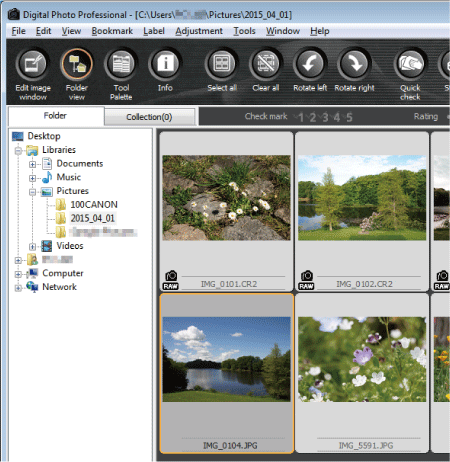
2. Select the [File] menu -> [Print].

3. The [Print] screen appears. Specify the optimum print settings, and then click [OK].
4. Printing begins.
To layout one image on one sheet of paper and print together with titles and shooting information, choose [Print with detailed setting].
1. Start Digital Photo Professional and choose the desired image.
2. Select the [File] menu -> [Print with detailed setting].

3. A screen such as the one shown in the example image below appears. Switch tab sheets (  ) as necessary, and make the desired print settings. The settings made in individual tab sheets can be memorized by click the [Apply] (
  ) button.
) as necessary, and make the desired print settings. The settings made in individual tab sheets can be memorized by click the [Apply] ( ) button. Please note: settings made in the text tab will not be saved even if the [Apply] button is clicked.
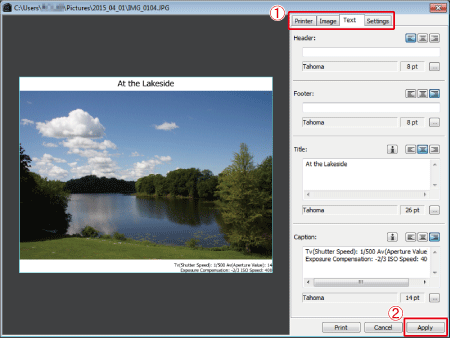
| Tab Sheet Items | Details |
| [Printer] | Settings for printer model, paper size, and page orientation can be specified. Print profiles can also be set. |
| [Image] | The size and layout of images can be set. |
| [Text] | Display of shooting information, such as ISO speed, shutter speed, and aperture, can be set (refer to the example image above). When  is clicked for [Title] or [Caption], the [Specify Information] screen appears and the desired information can be specified. is clicked for [Title] or [Caption], the [Specify Information] screen appears and the desired information can be specified. |
| [Settings] | Other settings, such as [Print background in black], can be specified. |
4. Click [Print] to begin printing.
Digital Photo Professional Ver.3.x allows you to print multiple images on a single sheet of paper, same as Contact Print (strip of same-size prints). It is very convenient for creating lists of shot images.
1. Start Digital Photo Professional and choose the desired image.
2. Select the [File] menu -> [Print contact sheets].
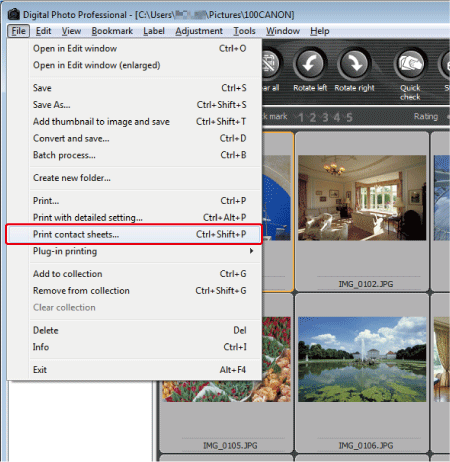
3. A screen such as the one shown in the example image below appears. Switch tab sheets ( ) as necessary, and make the desired print settings. The settings made in individual tab sheets can be memorized by click the [Apply] (  ) button.
) as necessary, and make the desired print settings. The settings made in individual tab sheets can be memorized by click the [Apply] ( ) button. Please note: settings made in the text tab will not be saved even if the [Apply] button is clicked.

| Tab Sheet Items | Details |
| [Printer] | Settings for printer model, paper size, and page orientation can be specified. Print profiles can also be set. |
| [Image] | Settings for layout, size and position of images (see the image above). Select [Number of images] under [Layout] for specifying the number of columns and rows of the images ( ). |
| [Text] | Desired information, such as total pages or any characters, can be displayed at the top/bottom of the page. If you want to print images together with file names, click  for [File name] under [Caption]. for [File name] under [Caption]. |
| [Settings] | Other settings, such as [Print background in black], can be specified. |
| Same for all tabs | When you print on multiple sheets of paper, page number/ total pages will be displayed (  ). ). |
4. Click [Print] to begin printing.
Images can be printed from Digital Photo Professional using printer plug-ins.
NOTE
To use [Plug-in printing], please install the plug-ins for a printer which supports Digital Photo Professional in advance. For more information on plug-ins that can be used with Digital Photo Professional, please contact the printer manufacturer.
1. Start Digital Photo Professional and choose the desired image.
2. Select the [File] menu -> [Plug-in printing].
3. When the plug-in starts up, specify the required settings, and then print.
Refer to the Digital Photo Professional manual (comes with the camera) for details on Plug-in printing.