How to Turn On-Screen Displays On/Off? (How to Turn On-Screen Displays Off During Playback?)
Solusi
You can press the < DISP. > button on the camcorder to turn the on-screen displays on the LCD monitor (which show information such as the date, camera data [aperture/shutter speed], and battery information) on/off.
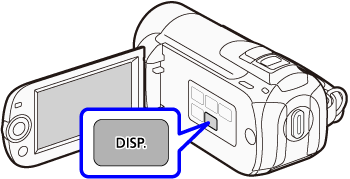
Furthermore, when using audio/video input terminals to connect the camcorder to a TV to play back movies, you can also use the < DISP. > button to turn on/off the on-screen displays.
CAUTION
The on-screen displays cannot be turned on/off in AUTO mode. Press <  /
/ > to set the camcorder to flexible recording mode.
/ > to set the camcorder to flexible recording mode.REFERENCE
You can also push the joystick down to hide the joystick guide.
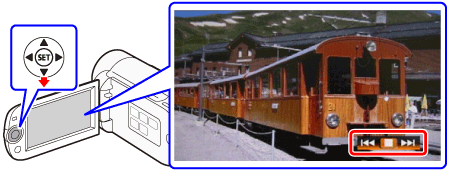
For details on how to switch between different on-screen displays, please see the information described below.
- All displays on
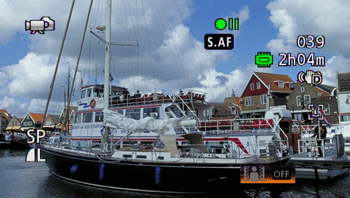
- Most displays off*

* The following icons will appear even when all other on-screen displays are turned off:
- The icons [  ] and [
  ]
]
] and [ ]- The screen markers set in the camcorder's menu
- All displays on

- Data code only

- All displays off

REFERENCE
About the Data Code
With every scene or photo recorded, the camcorder keeps a data code (date/time of recording, information about the camera setup, etc.).
In  mode, this information is displayed on the bottom bar and as information icons; in
  mode, you can select the information to be displayed with the
  -> [Data Code] setting.
mode, this information is displayed on the bottom bar and as information icons; in mode, you can select the information to be displayed with the -> [Data Code] setting.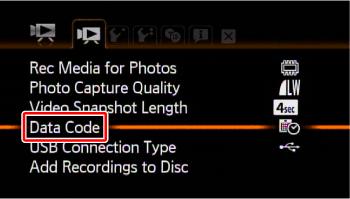
- All displays on
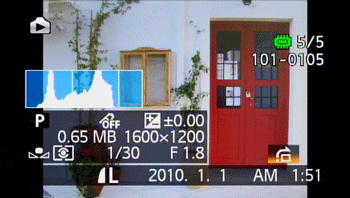
- Regular displays only (removes the histogram and information icons)
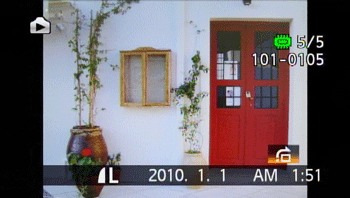
- All displays off