








How do I release the shutter automatically using the self-timer and Smart Shutter? (PowerShot SX230 HS / SX220 HS)
Solusi
The camera can release the shutter automatically without pressing the shutter button.
The self-timer can be used to shoot a group photo that includes the photographer or to prevent camera shake when pressing the shutter button.
Restrictions with the self-timer function in certain shooting modes
1. Press the <Power> button on the camera.
2. Press the Down <directional button>.
3. The following screen appears.
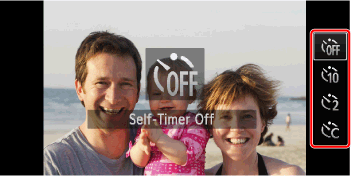
Operate the <directional button> up or down, and select from [10 sec. Self-Timer] ( ), [2 sec. Self-Timer] (
 ), or [Custom Timer] (
 ).
).
), [2 sec. Self-Timer] (), or [Custom Timer] ().After the settings are completed, press the <FUNC./SET> ( ) button.
) button.REFERENCE
- If [Custom Timer] () is selected, you can set the delay to between 0 and 30 seconds, and the number of shots to between 1 and 10 shots.
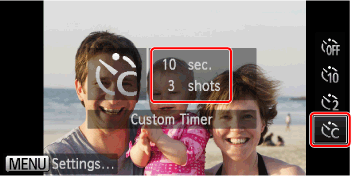
To make the setting, press the < > button to set [Delay] and [Shots].
> button to set [Delay] and [Shots].Please note that when the camera is in the following modes, there are restrictions to the available self-timer functions.
 ... No restrictions
 ... Cannot be set
 ... 0-second delay cannot be set
| Model | Self-timer | Shooting mode | |||||||
|---|---|---|---|---|---|---|---|---|---|
 |  |  |  |  |  |  | |||
| PowerShot SX230 HS / SX220 HS | | | | | | | | | |
| [Delay] | | | | | | | | |
| [Shots] | | | | | | | | ||
If you set the [Rec. Mode] to [Smart Shutter] ( ), the camera will use the face-detection function to perform various types of automatic shooting.
Shooting modes in which automatic shooting is possible using Smart Shutter
), the camera will use the face-detection function to perform various types of automatic shooting.1. Set the <Mode Switch> to [SCN] and then press the <Power> button.
2. Press the <FUNC./SET> () button.
) button.3. The following screen appears.
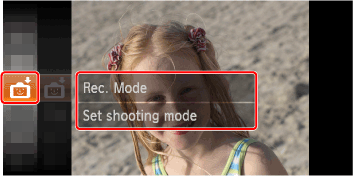
Operate the <directional buttons> up or down to select [Rec. Mode] (If no changes have been made so far, [Smart Shutter] () will be displayed).
) will be displayed).After the settings are completed, press the <FUNC./SET> () button.
) button.4. The following screen appears.
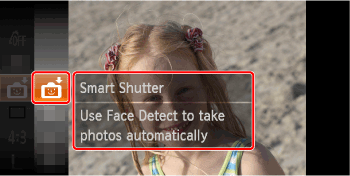
Operate the <directional button> up or down to select [Smart Shutter] ().
).After the settings are completed, press the <FUNC./SET> () button.
) button.5. Press the < > button.
> button.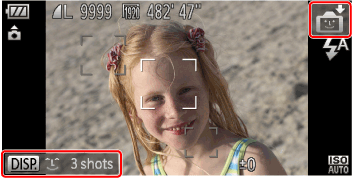
6. The following screen appears.
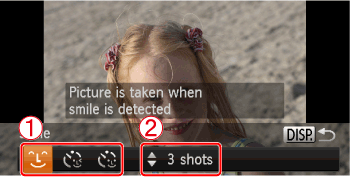
 Operate the <directional button> left or right, select a shooting mode from [Smile] (
 ), [Wink Self-Timer] (
 ), and [Face Self-Timer] (
 ). For details on the shooting modes that can be set for [Smart Shutter], refer to the following table.
 Operate the <directional button> up or down to select the number of shots.
After the settings are completed, press the <> button.
> button.( ) | The camera will shoot, even without pressing the shutter button, when it detects a smile. |
- If a smile is not detected, facing the camera and smiling with the mouth open to show some teeth will make it easier for the camera to detect the smile. - You should switch to another mode when you finish shooting, or the camera will continue taking shots each time the camera detects a smile. - You can also shoot by pressing the shutter button. |
( ) | Point the camera at a person and press the shutter button fully. The camera will shoot approximately two seconds after it detects a wink. | - Wink a bit slowly. - A wink may not be detected if eyes are covered by hair or a hat, or when wearing glasses. - Shutting both eyes will also be detected as a wink. - If a wink is not detected, the camera will automatically shoot after about 15 seconds later. - If there are no people in the shot when the shutter button is pressed fully, the camera will shoot after a person enters the shot and winks. |
( ) | The shutter will release approximately two seconds after the camera detects a new face. You can use this when the photographer wants to be in the image, such as a group photo. | - To cancel shooting with the self-timer after the countdown has started, press the down button of the < directional buttons >. - If the camera cannot detect the face of a new subject that has entered the shot, it will shoot after about 15 seconds later. |