





Playing back the scene you want to see (VIXIA HF G20 / LEGRIA HF G25)
Solusi
The following section describes how to play back scenes you captured.
1. Press <  >.
>.
>.2. Touch [  ].
].
].
3. Touch the memory where the scene you want to play back is saved.

Select [Date] or [Gallery], depending on whether you want to play back the scenes by date or by story.
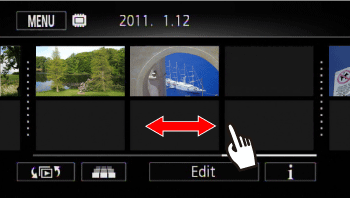
1. Select the memory, and then touch [Date].

2. Drag your finger right or left to search for the scenes you wish to play back.
NOTE
Touch [  ] to switch to the 3D Flip View, displaying your recordings in a 3D layout, organized by recording date.
] to switch to the 3D Flip View, displaying your recordings in a 3D layout, organized by recording date.3. Touch the scene you want to see to play it back.

Touch the screen during playback to display the playback controls for a few seconds.
1. Select the memory, and then touch [Gallery].
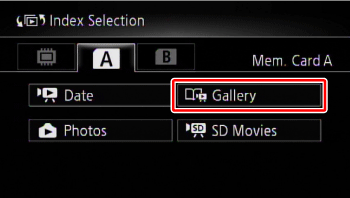
2. Drag your finger right or left to display the story you wish to see.

3. Touch the story to play it back.

CAUTION
- Observe the following precautions while the ACCESS indicator is on or flashing (while scenes are being deleted).
- Do not open the double memory card slot cover.
- Do not disconnect the power source or turn off the camcorder.
- Do not change the camcorder’s operating mode.