







Connecting Easily to a Wireless LAN (WPS Setup)
Solusi
To use WPS to make a connection using infrastructure mode, make sure your wireless router has the WPS logo. If your wireless router has a WPS button, setup will be easy and all automatic.
Some wireless routers that support WPS do not have a dedicated button but use a PIN code instead.

1. Set the camcorder to playback mode and then press <HOME>.
2. Set up a new connection point.
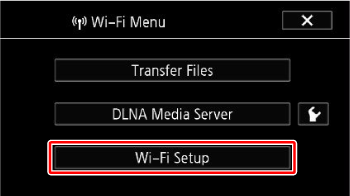
2-1. Touch [Wi-Fi].

2-2. Touch [Wi-Fi Setup].
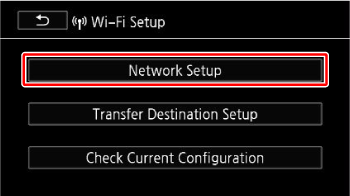
2-3. Touch [Network Setup].
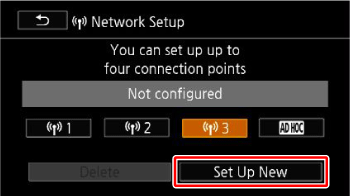
3-2. Touch desired connection point ( ~
~  ).
).
~ ).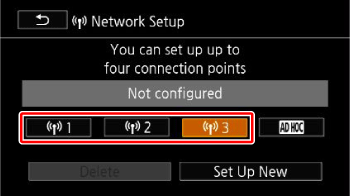
3-3. Touch [Set Up New].
REFERENCE
- When changing the set connection point:
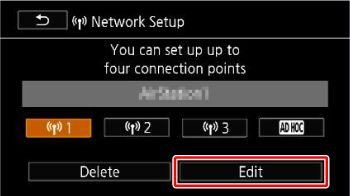
1. Touch the number for the connection point you want to change (from to ), and then touch [Edit].
to ), and then touch [Edit]. 2. Manually set the items you want to change.
- When deleting a connection point:
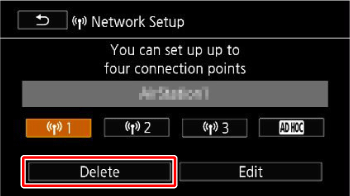
1. Touch the number for the connection point you want to delete (from to ), and then touch [Delete].
to ), and then touch [Delete]. 2. Touch [Yes].
- Push-button approach:
i. Touch [WPS: Button].
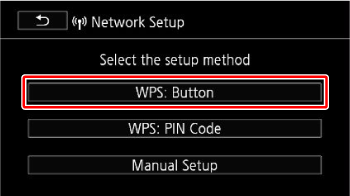
ii. Press and hold the WPS button on your wireless router.
iii. Within 2 minutes, touch [OK] on the camcorder's screen.
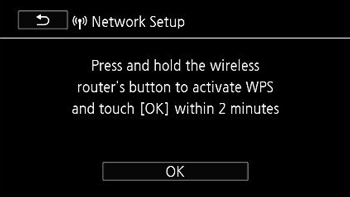
When the settings are completed, connect to the wireless LAN.
- PIN code approach:
i.Touch [WPS: PIN Code]
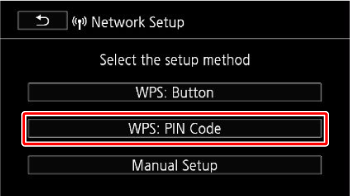
ii. After a PIN code appears on the camcorder's screen, enter it into your wireless router's setup screen.
In most cases, the wireless router’s setup screen is accessed using your Web browser. For details about how to activate the Wi-Fi protected setup, refer to the instruction manual of your wireless router.
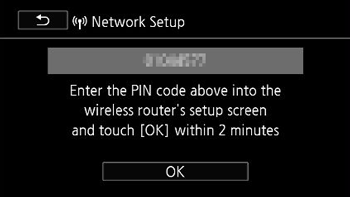
iii. Within 2 minutes, touch [OK] on the camcorder's screen.
For information about the location of the WPS button or how to use the PIN code, please see the instructions that came with your wireless router.
When the settings are completed, connect to the wireless LAN.
5. Connect the camcorder to the wireless LAN.
Touch [Automatic] to automatically obtain an IP address.
- A screen to test the settings will appear.
- Ordinarily you would choose [Automatic]. If you choose [Manual], be sure to make the settings described in Connecting to a wireless LAN by setting the IP address .
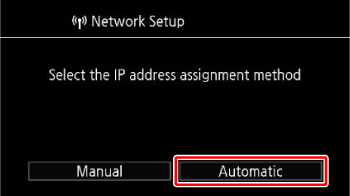
REFERENCE
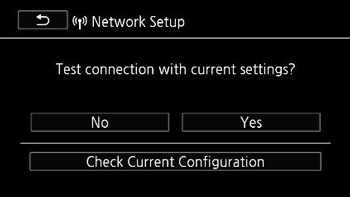
Select whether to test the settings.
- You can touch [Check Current Configuration] to review the network settings.
- If you touched [Yes], a test of the settings will be performed and a confirmation screen will appear. Touch [OK].
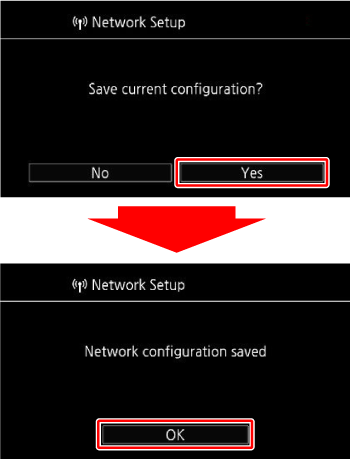
6. Save the settings of the connection point.
Touch [Yes] -> [OK] in that order.
REFERENCE
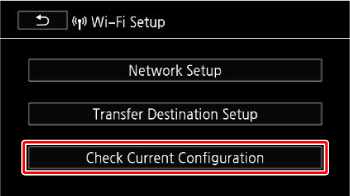
- When checking a connection point:
1. Touch [Wi-Fi Setup] -> [Check Current Configuration] in that order.
2. Touch the number for the connection point you want to change (from to ).
to ). - The details of the settings will appear.
3. Touch either  or
or  to check the items.
or to check the items. 4. Touch  three times.
three times. - The screen will return to the Wi-Fi menu.
7. Touch  .
.
.