







Customizing the operation buttons on the EOS 6D (assigning functions other than the default functions to the buttons)
Solusi
NOTE
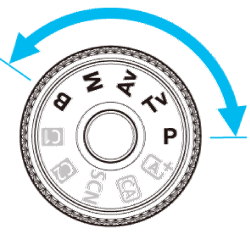
It is not possible to customize functions assigned to the operation buttons in Basic Zone modes. To customize the functions, set the Mode Dial to a Creative Zone mode.
1. Set the power switch to <ON>.
2. Set the Mode Dial to a Creative Zone mode.
3. Under the [  ] tab, select [C.Fn III: Operation/Others], then press <SET>.
] tab, select [C.Fn III: Operation/Others], then press <SET>.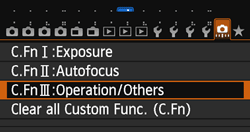
4. Select [5]:[Custom Controls], then press <SET>.
The Custom Controls screen will appear.
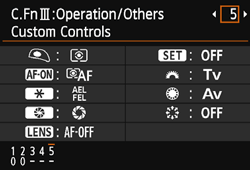
5. Select a camera button or dial, then press <SET>.
The name of the camera control and the assignable functions will be displayed.
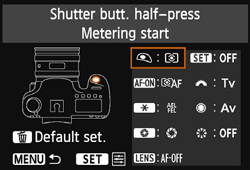
6. Select a function, then press <SET>.
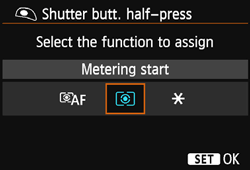
7. When you press <SET> to exit the setting, the screen in step 5 will reappear.
Press the <MENU> button to exit.
NOTE
With the screen in step 3 displayed, you can press the < > button to cancel the Custom Control settings. Note that the [ C.Fn III -5: Custom Controls] settings will not be canceled even if you select [ : Clear all Custom Func. (C.Fn)].
> button to cancel the Custom Control settings. Note that the [ C.Fn III -5: Custom Controls] settings will not be canceled even if you select [ : Clear all Custom Func. (C.Fn)].Assignable Functions to Camera Controls
* The AF stop button [  ]is provided only on super telephoto IS lenses.
| Function |  |  |  |  | * |  |  |  |  | ||
| AF |  | Metering and AF start |  | | | | |||||
 | AF stop | | | | | ||||||
 | ONE SHOT  AI SERVO AI SERVO | | | ||||||||
 | AF point direct selection | | |||||||||
| Exposure |  | Metering start | | ||||||||
 | AE lock/FE lock | | | | | ||||||
 | AE lock | | | | | ||||||
| AE lock (while button pressed) | | |||||||||
 | AE lock (hold) | | | | | ||||||
 | FE lock | | | | | ||||||
 | Set ISO speed (hold button, turn ) | | |||||||||
 | Shutter speed setting in M mode | | | ||||||||
 | Aperture setting in M mode | | | ||||||||
| External flash |  | Flash exposure compensation | | ||||||||
| Image |  | Image quality | | ||||||||
 | Picture Style | | |||||||||
| Operation |  | Depth-of-field preview | | ||||||||
 | IS start | | | ||||||||
 | VF electronic level | | |||||||||
 | Menu display | | |||||||||
 | No function (disabled) | | | | | | |||||
]is provided only on super telephoto IS lenses.