







Customizing the operation buttons on the EOS 70D (assigning functions other than the default functions to the buttons)
Solusi
NOTE
Icons used on this page:
[  ]: C.Fn setting tab / <
 >: Erase button
]: C.Fn setting tab / <>: Erase button1. Set the camera’s power switch to <ON>.

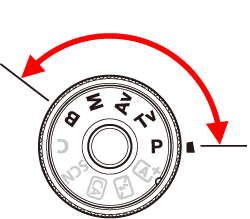
2. Set the Mode Dial to a Creative Zone mode.
NOTE
It is not possible to customize functions assigned to the operation buttons in Basic Zone modes. To customize the functions, set the Mode Dial to a Creative Zone mode.
Also, the current camera settings can be saved under the Mode Dial <C> position.
3. Press the <MENU> button to display the menu.
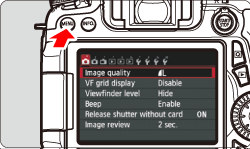
4. Under the [ ] tab, select [C.Fn III: Operation/Others], then press < >.
>.
] tab, select [C.Fn III: Operation/Others], then press < >.
5. Select [4: Custom Controls], then press < >.
>.The Custom Controls screen will appear.

6. Select a camera button or dial, then press < >.
>.The name of the camera control and the assignable functions will be displayed.
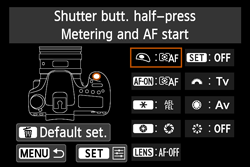
7. Select a function, then press < >.
>.
8. When you press < > to exit the setting, the screen in step 6 will reappear.
> to exit the setting, the screen in step 6 will reappear.Press the <MENU> button to exit.
NOTE
With the screen in step 6 displayed, you can press the <> button to cancel the Custom Control settings. Note that the [ C.Fn III -4: Custom Controls] settings will not be canceled even if you select [ : Clear all Custom Func. (C.Fn)].
> button to cancel the Custom Control settings. Note that the [ C.Fn III -4: Custom Controls] settings will not be canceled even if you select [ : Clear all Custom Func. (C.Fn)].Assignable Functions to Camera Controls
* The AF stop button [  ]is provided only on super telephoto IS lenses.
| Function |  |  |  |  | * |  |  |  |  | ||
| AF |  | Metering and AF start |  | | | | |||||
 | AF stop | | | | | ||||||
 | ONE SHOT  AI SERVO AI SERVO | | | ||||||||
 | AF point direct selection | | |||||||||
| Exposure |  | Metering start | | ||||||||
 | AE lock/FE lock | | | | | ||||||
 | AE lock | | | | | ||||||
| AE lock (while button pressed) | | |||||||||
 | AE lock (hold) | | | | | ||||||
 | FE lock | | | | | ||||||
 | Set ISO speed (hold button, turn ) | | |||||||||
 | Shutter speed setting in M mode | | | ||||||||
 | Aperture setting in M mode | | | ||||||||
| External flash |  | Flash exposure compensation | | ||||||||
| Image |  | Image quality | | ||||||||
 | Picture Style | | |||||||||
| Operation |  | Depth-of-field preview | | ||||||||
 | IS start | | | ||||||||
 | VF electronic level | | |||||||||
 | Menu display | | |||||||||
 | No function (disabled) |
|
|
|
|
| |||||
]is provided only on super telephoto IS lenses.