








Selecting an [Audio Scene] to match your surroundings (VIXIA mini / LEGRIA mini)
Solusi
You can have the camcorder optimize the audio settings of the built-in microphone by selecting the audio scene that matches your surroundings. This will greatly enhance the sense of presence of your scenes.
NOTE
During interval recording and slow/fast motion, there is no audio recording and the [Audio Scene] setting cannot be changed.
The [Audio Scene] setting procedure is explained below.
1. Set the power switch to ON to turn on the camcorder.

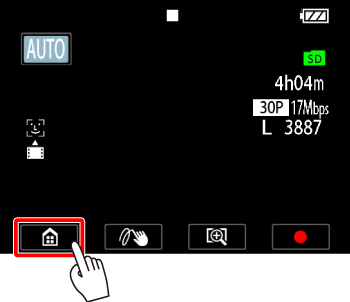
2. Touch [  ].
].
].
3.  Drag your finger left/right to bring the [Audio Scene] menu to the center, and then
  touch the icon to open it.
Drag your finger left/right to bring the [Audio Scene] menu to the center, and then touch the icon to open it.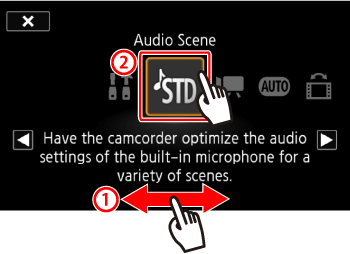
4.  Select the audio scene that matches your surroundings, and then
  touch [OK].
Select the audio scene that matches your surroundings, and then touch [OK].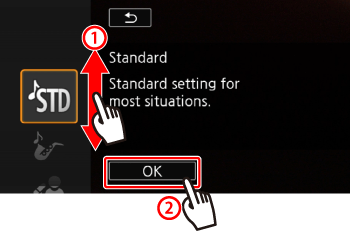
Options ( Default value)
Default value) Standard Standard | To record most general situations. The camcorder records with standard settings. |
 Music Music | To vibrantly record music performances and singing indoors. |
 Speech Speech | Best for recording human voices and dialog. |
 Forest and Birds Forest and Birds | To record birds and scenes in forests. The camcorder clearly captures sound as it spreads. |
 Noise Suppression Noise Suppression | To record scenes while reducing noise from wind, passing vehicles and similar ambient sound. Ideal for recording at the beach or in places with a lot of noise. |
This concludes the setting procedure for [Audio Scene].