







2-Sided Copying
Solusi
The 2-Sided Copying mode enables you to make two-sided copies from one-sided or two-sided documents, or make one-sided copies from two-sided documents. This feature is useful especially when copying in large quantities because paper costs can be reduced by half.
The default setting is <OFF>.
NOTE
- 2 to 2-Sided and 2 to 1-Sided copying are available only for the MF4380dn.
- Paper used to make 2-sided copies must conform to the following specifications:
- Paper size: A4 and LTR (envelopes cannot be used for 2-sided copying)
- Paper weight: 64 to 80 g/sq.m.

1. Place documents.
2. Press  [COPY].
[COPY].3. Press  [2-Sided] to select <1 > 2-SIDED>, then press [OK].
[2-Sided] to select <1 > 2-SIDED>, then press [OK].NOTE
If there are odd number of documents when the 1-Sided to 2-Sided mode is used, the back side of the last copy is left blank.
4. Press [  ] or [
  ] to select <BOOK TYPE> or <CALENDAR TYPE>, then press [OK].
] or [ ] to select <BOOK TYPE> or <CALENDAR TYPE>, then press [OK].- <BOOK TYPE>: The front and back sides of the copy will have the same top-bottom orientation.
- <CALENDAR TYPE>: The front and back sides of the copy will have the opposite top-bottom orientation.
NOTE
For the landscape oriented documents:
- When <BOOK TYPE> is selected, the front and back sides of the copy will have the opposite top-bottom orientation.
- When <CALENDAR TYPE> is selected, the front and back sides of the copy will have the same top-bottom orientation.
5. Use  -
-  [numeric keys] to enter the desired copy quantity (1 to 99).
- [numeric keys] to enter the desired copy quantity (1 to 99).6. Press  [Start].
[Start].If you want to copy multiple documents using the platen glass, place a document and press [Start] once for each page. When scanning is complete, press [OK].
[Start] once for each page. When scanning is complete, press [OK].NOTE
- To cancel all settings, press
 [Stop/Reset].
 - When you switch the mode by pressing the mode keys such as
 [FAX], all settings will be canceled. If you want to keep the settings, store the settings as follows:
  [Menu] -> <COPY SETTINGS> -> <STANDARD SETTINGS> -> <2-SIDED>
 - You can skip step 4. In this case, the machine scans 1-sided documents to make 2-sided, <BOOK TYPE> copies.

1. Place documents in the ADF.
2. Press [COPY].
[COPY].3. Press [2-Sided] repeatedly to select <2 > 2-SIDED>, then press [OK].
[2-Sided] repeatedly to select <2 > 2-SIDED>, then press [OK].4. Press [ ] or [ ] to select <BOOK TYPE> or <CALENDAR TYPE> for the document layout, then press [OK].
] or [ ] to select <BOOK TYPE> or <CALENDAR TYPE> for the document layout, then press [OK].- <BOOK TYPE>: The front and back sides of the document will have the same top-bottom orientation.
- <CALENDAR TYPE>: The front and back sides of the document will have the opposite top-bottom orientation.
5. Press [ ] or [ ] to select <BOOK TYPE> or <CALENDAR TYPE> for the output layout, then press [OK].
] or [ ] to select <BOOK TYPE> or <CALENDAR TYPE> for the output layout, then press [OK].- <BOOK TYPE>: The front and back sides of the copy will have the same top-bottom orientation.
- <CALENDAR TYPE>: The front and back sides of the copy will have the opposite top-bottom orientation.
6. Use - [numeric keys] to enter the desired copy quantity (1 to 99).
- [numeric keys] to enter the desired copy quantity (1 to 99).7. Press [Start].
[Start].NOTE
- To cancel all settings, press [Stop/Reset].
- When you switch the mode by pressing the mode keys such as [FAX], all settings will be also canceled. If you want to keep the settings, store the settings as follows: [Menu] -> <COPY SETTINGS> -> <STANDARD SETTINGS> -> <2-SIDED>
- You can skip steps 4 and 5. In this case, the machine scans 2-sided documents in the <BOOK TYPE> orientation and outputs the same way.
- If you press [Start] in step 4 after selected <CALENDAR TYPE>, the machine scans 2-sided documents in the <CALENDAR TYPE> orientation and outputs the same way.
1. Place documents in the ADF.
2. Press [COPY].
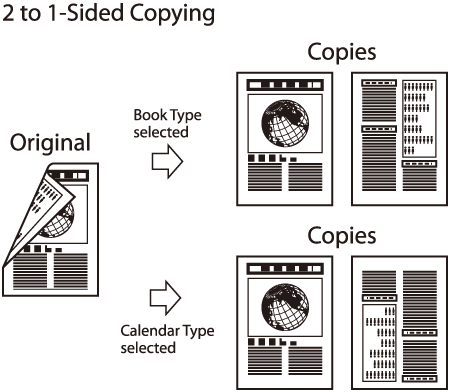
[COPY].3. Press [2-Sided] repeatedly to select <2 > 1-SIDED>, then press [OK].
[2-Sided] repeatedly to select <2 > 1-SIDED>, then press [OK].4. Press [ ] or [ ] to select <BOOK TYPE> or <CALENDAR TYPE>, then press [OK].
] or [ ] to select <BOOK TYPE> or <CALENDAR TYPE>, then press [OK].- <BOOK TYPE>: The front and back sides of the document have the same top-bottom orientation.
- <CALENDAR TYPE>: The front and back sides of the document will have the opposite top-bottom orientation.
5. Use - [numeric keys] to enter the desired copy quantity (1 to 99).
- [numeric keys] to enter the desired copy quantity (1 to 99).6. Press [Start].
[Start].NOTE
- To cancel all settings, press [Stop/Reset].
- When you switch the mode by pressing the mode keys such as [FAX], all settings will be also canceled. If you want to keep the settings, store the settings as follows: [Menu] -> <COPY SETTINGS> -> <STANDARD SETTINGS> -> <2-SIDED>
- You can skip step 4. In this case, the machine scans 2-sided documents in the <BOOK TYPE> orientation to make 1-sided copies.