







Basic Copying Method
Solusi
The MF4380dn is used for illustration purposes in this section.
This section describes the basic procedure for copying.
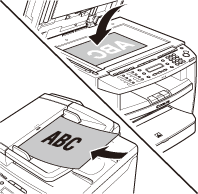
1. Place a document on the platen glass or load it in the ADF.
NOTE
Close the ADF/platen glass cover after placing your document.
2. Press  [COPY].
[COPY].3. Use  -
-  [numeric keys] to enter the desired copy quantity (1 to 99).
- [numeric keys] to enter the desired copy quantity (1 to 99).- The copy quantity appears on the right side of the display.
- If you make a mistake when entering values, press
 [Clear] and enter the correct values.

NOTE
You cannot change the copy quantity while the machine is copying.
4. Press  [Start].
[Start].You can adjust the image quality of copies according to the types of documents. These settings return to the default values if the machine remains idle for a certain period of time or if you press  [Stop/Reset].
[Stop/Reset].The default settings is <TEXT/PHOTO>.
NOTE
- Combinations of these four modes (TEXT/PHOTO, TEXT, PHOTO, TEXT/PHOTO+) cannot be selected at the same time. If you select one of these modes, the previously set mode is canceled.
- If the document is a transparency, select the document type, then adjust the exposure to the most appropriate level for the document.
1. Place documents.
2. Press [COPY].
[COPY].3. Press  [Image Quality] repeatedly to select the document type.
[Image Quality] repeatedly to select the document type.- <TEXT/PHOTO>: For documents that contain text and photos
- <TEXT>: For text documents <PHOTO>: For documents that contain fine text or photos
- <PHOTO>: For documents that contain fine text or photos
- <TEXT/PHOTO+>: For documents that contain fine text and photos
NOTE
Copy density automatically changes to the manual mode when <TEXT/PHOTO>, <PHOTO>, or <TEXT/PHOTO+> is set.
4. Use - [numeric keys] to enter the desired copy quantity (1 to 99).
- [numeric keys] to enter the desired copy quantity (1 to 99).5. Press [Start].
[Start].If you want to copy multiple documents using the platen glass, place a document and press [Start] once for each page. When scanning is complete, press [OK].
[Start] once for each page. When scanning is complete, press [OK].You can cancel scanning or ongoing jobs.
NOTE
If you cancel a copy job during scanning, make sure to remove the document.
1. Press [Stop/Reset].
[Stop/Reset].2. When the <CANCEL COPYING?> message appears, press [  ] to select <YES>.
] to select <YES>.
The job is canceled, and the copy quantity is reset.