








Uninstalling applications (Mac OS X)
Solusi
This section describes how to uninstall the applications of the [DIGITAL CAMERA Solution Disk] from your computer. The following instructions are intended for [ImageBrowser].
(Uninstallation is an operation to remove a driver / software when it is no longer needed, or if a problem occurs.)
CAUTION
- The following instructions are intended for Mac OS X (v10.6).
- The procedures described in this section are for uninstalling [Image Browser]; however when uninstalling applications from the [Canon Utilities] folder, the procedures are almost the same.
- Please be careful not to accidentally delete any folders with downloaded images that may be contained within the application folder. It is recommended that you save the image folder (create a backup) before uninstallation. Images downloaded to [ImageBrowser] are normally saved in [Go] > [home] > [Pictures] on the [menu bar].
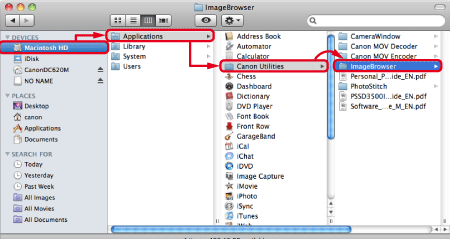
1. Click the icon of the hard disk to which the image folder was installed, and then select [Applications] > [Canon Utilities] > [Image Browser].
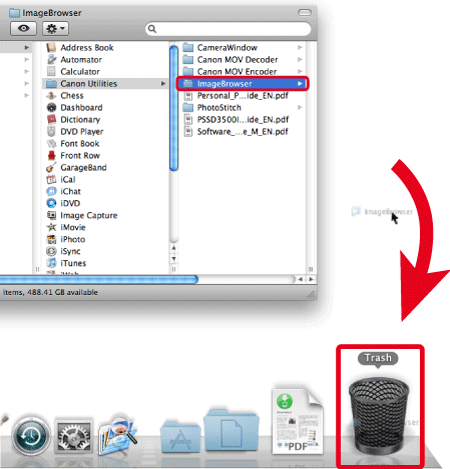
2. Move the [Image Browser] folder to [Trash].
3. From the [Finder] menu, select [Empty Trash].

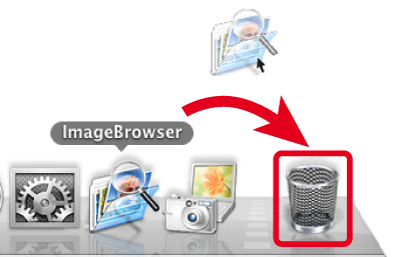
4. If the [Image Browser] icon still remains under [Dock], drag the icon to [Trash] to delete.
This completes the process of uninstalling the application.
CAUTION
If you want to remove all the software applications and PDF manuals that were installed from the [DIGITAL CAMERA Solution Disk], it is necessary to delete the following folders and files that are in the [Canon Utilities] folder in [Applications].
- [Image Browser]
- [CameraWindow]
- [PhotoStitch]
- [Canon MOV Decoder]
- [Canon MOV Encoder]
- [Software_Guide_M_EN.pdf]
- [Personal_Printing_Guide_EN.pdf]