







Using the Quick Setting Menu Screen (EOS M3)
Solusi
Commonly-used functions can be configured in the  (Quick Setting) menu.
(Quick Setting) menu.Note that menu items and options vary depending on the shooting mode or playback mode.
- The following section explains the setting procedures when the camera’s shooting mode has been set to [
 ] mode.
1. Set the camera’s power to [ON].

2. If the shooting functions screen ( ) is displayed, press the [
  ] button to change the screen display (
 ,
,  ,
,  ) as shown below.
) is displayed, press the [ ] button to change the screen display (, , ) as shown below.
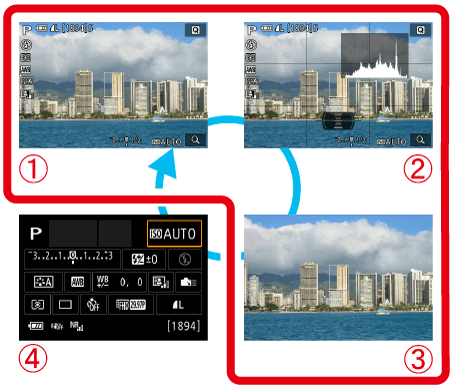 : Custom display 1: Custom Display 2: No information display: Shooting functions screen
3. Press the [  ] button.
] button.
4. Press the [  ], [
], [  ] buttons to choose a menu item ().
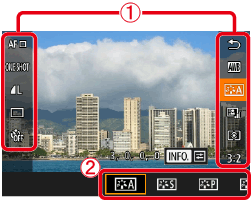
], [ ] buttons to choose a menu item ().Available options () are shown at the bottom of the screen.
) are shown at the bottom of the screen.・[Picture style] has been selected in the example image below.
5. Press the [  ], [
], [  ] buttons or turn the [
  ] dial or [
  ] dial to select an option.
], [ ] buttons or turn the [ ] dial or [ ] dial to select an option.
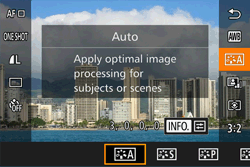
REFERENCE
- Options labeled with a [
 ] icon can be configured by pressing the [ ] button.
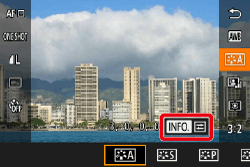
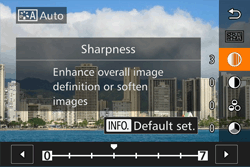
6. Press the [ ] button.
] button.The screen before you pressed the [ ] button in step 3 is displayed again, showing the option you configured.
] button in step 3 is displayed again, showing the option you configured.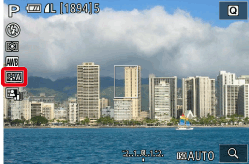
NOTE
To undo any accidental setting changes, you can restore the camera’s default settings. For more information, please refer to Reverting the Camera to the Default Settings (EOS M3).
You can perform camera operations by touching the screen.
- The following section explains the setting procedures when [ Picture Style ] has been selected.
1. Touch the [ ] button on the upper right of the screen to open the Quick Setting menu.
] button on the upper right of the screen to open the Quick Setting menu.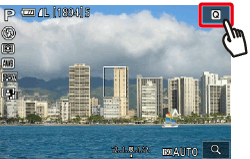
2. Touch the onscreen menu options to make selections.
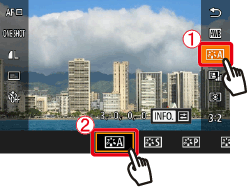
3. Touch [  ] within a menu option, or touch the currently-selected option, to go back to the previous screen.
] within a menu option, or touch the currently-selected option, to go back to the previous screen.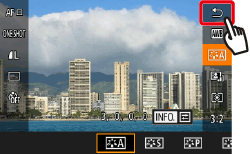
REFERENCE
You can access the screen for options labeled with a [ ] icon by touching [ ].
] icon by touching [ ].The shooting functions screen lets you quickly adjust options using a list of functions.
1. Set the camera’s power to [ON].
2. Press the [ ] button repeatedly to display the shooting function menu ().
] button repeatedly to display the shooting function menu ().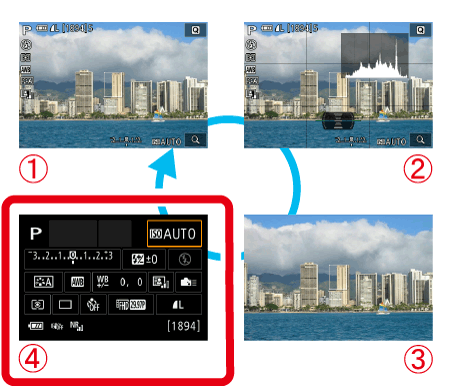
3.Press the [ ], [ ], [ ], [ ] buttons to choose a function and display a description.
], [ ], [ ], [ ] buttons to choose a function and display a description.●You can also turn the [ ] dial or [ ] dial to access functions.
] dial or [ ] dial to access functions.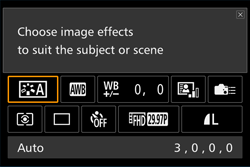
NOTE
The adjustable functions differ depending on the shooting mode.
Some functions open up another options screen when you choose them and press the [ ] button. Options labeled with a [ ] icon in the second screen can be configured by pressing the [ ] button. Press the [ ] button to return to the shooting functions screen.
] button. Options labeled with a [ ] icon in the second screen can be configured by pressing the [ ] button. Press the [ ] button to return to the shooting functions screen.REFERENCE
- Touch a function in the shooting functions screen, then touch it again to go to the adjustment screen for the function. Touch [ ] to return to the previous screen.
- Touch [
 ] on the upper right of the function description to close the description display.