







Correcting Image Distortions and Color Blur (Lens Aberration Correction Function of Digital Photo Professional)
Correcting Image Distortions and Color Blur (Lens Aberration Correction Function of Digital Photo Professional)
Some lens characteristics could cause the periphery of images shot to become darker than the center, or cause the subject to be distorted. In such cases, you can use the lens aberration correction function of Digital Photo Professional. Using this function, you can improve the following phenomena, which cannot be completely eliminated in the lens structure, to make images that are closer to what you intended.
Phenomena that can be corrected:
- Diminished peripheral illumination (the amount of light at the periphery of an image)
- Distortions (distorted lines)
- Chromatic aberration (color fringing that occurs in the periphery of an image)
- Color blur (blue or red color blur that sometimes occurs at the edge of the highlighted area of an image)
- Diminished peripheral illumination (the amount of light at the periphery of an image)
- Distortions (distorted lines)
- Chromatic aberration (color fringing that occurs in the periphery of an image)
- Color blur (blue or red color blur that sometimes occurs at the edge of the highlighted area of an image)
Note:
1. You can only correct RAW images that you have taken with the compatible cameras and lenses listed bellow. JPEG or TIFF images cannot be corrected.
2. For images taken with a camera/lens combination in which the camera or lens are not in the lists below, the aberration correction function cannot be used. (Because it is unavailable, the aberration correction function is not shown.)
List of Compatible Cameras
|
EOS-1Ds Mark III
|
EOS-1D Mark III
|
EOS-1D Mark II N
|
|
EOS-1Ds Mark II
|
EOS-1D Mark II
|
EOS-1Ds
|
|
EOS-1D
|
EOS 5D
|
EOS 40D
|
|
EOS 30D
|
EOS Kiss Digital X/EOS DIGITAL REBEL XTi/EOS 400D DIGITAL
|
|
List of Compatible Lenses
|
EF 14mm f/2.8L USM
|
EF 24-105mm f/4L IS USM
|
|
EF 14mm f/2.8L II USM*1 *3
|
EF 28-70mm f/2.8L USM
|
|
EF 20mm f/2.8 USM
|
EF 28-135mm f/3.5-5.6 IS USM
|
|
EF 24mm f/1.4L USM
|
EF 28-200mm f/3.5-5.6
|
|
EF 28mm f/1.8 USM
|
EF 28-200mm f/3.5-5.6 USM
|
|
EF 35mm f/1.4L USM
|
EF 28-300mm f/3.5-5.6L IS USM
|
|
EF 50mm f/1.2L USM *1 *4
|
EF 100-400mm f/4.5-5.6L IS USM
|
|
EF 50mm f/1.4 USM
|
EF-S 60mm f/2.8 Macro USM
|
|
EF 85mm f/1.2L USM
|
EF-S 10-22mm f/3.5-4.5 USM
|
|
EF 85mm f/1.2L II USM *2 *4
|
EF-S 17-55mm f/2.8 IS USM
|
|
EF 100mm f/2.8 Macro USM
|
EF-S 18-55mm f/3.5-5.6
|
|
EF 16-35mm f/2.8L USM
|
EF-S 18-55mm f/3.5-5.6 II
|
|
EF 16-35mm f/2.8L II USM *1 *3
|
EF-S 18-55mm f/3.5-5.6 USM
|
|
EF 17-35mm f/2.8L USM
|
EF-S 18-55mm f/3.5-5.6 II USM
|
|
EF 17-40mm f/4L USM
|
EF-S 18-55mm f/3.5-5.6 IS *3
|
|
EF 24-70mm f/2.8L USM
|
EF-S 55-250mm f/4-5.6 IS *3
|
*1: Image correction not possible with EOS 5D.
*2: Image correction not possible with EOS 5D if the firmware is version 1.0.5 or earlier.
*3: Image correction not possible with EOS 30D.
*4: Image correction not possible with EOS 30D if the firmware is version 1.0.4 or earlier.
*2: Image correction not possible with EOS 5D if the firmware is version 1.0.5 or earlier.
*3: Image correction not possible with EOS 30D.
*4: Image correction not possible with EOS 30D if the firmware is version 1.0.4 or earlier.
RAW images taken with a compatible lens with an extender attached cannot be corrected.
Correcting Lens Aberration
Follow the procedure below to correct lens aberration.
1. Start Digital Photo Professional and display the main window.
2. In the main window displayed, if you double-click the RAW image to be corrected, the edit screen and tool palette appear.
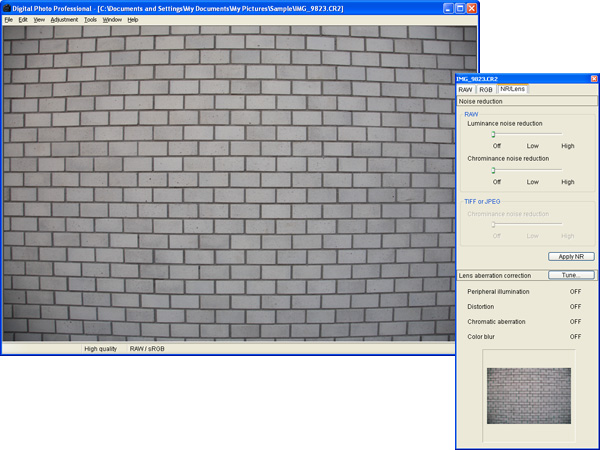
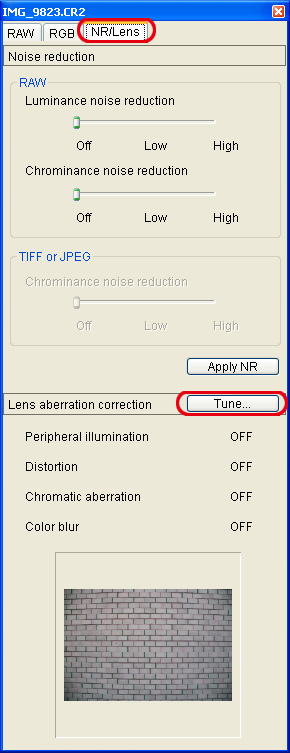
3. Select the NR/Lens tab and click [Tune].
4. When the [Lens aberration correction] window appears, select the items to be corrected. This section describes how to correct distortions and peripheral illumination.
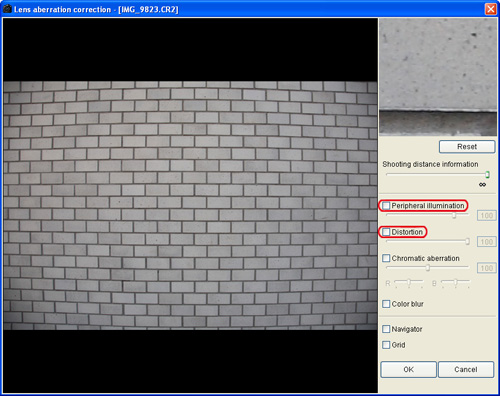
5. The image is corrected and redisplayed.
To adjust the correction amount, drag the slider from side to side.
You can correct red chromatic aberration with the [R] slider of the [Chromatic aberration] or blue chromatic aberration with the [B] slider.
To adjust the correction amount, drag the slider from side to side.
You can correct red chromatic aberration with the [R] slider of the [Chromatic aberration] or blue chromatic aberration with the [B] slider.
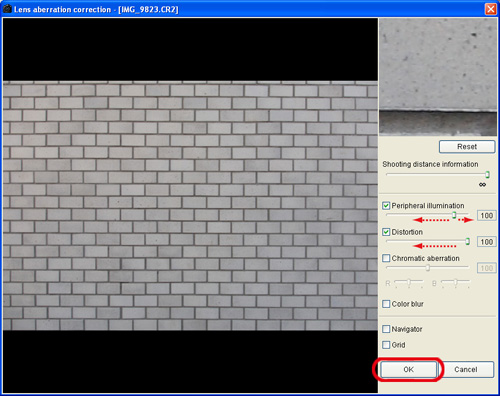
When the corrections are complete, click [OK].
6. When closing the [Lens aberration correction] window, the result of the corrections is reflected in the image in the edit window, and the image is redisplayed.
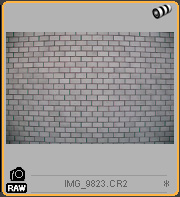
In the main window, the [ ] mark is displayed on the image to indicate the lens aberration corrections.
In the main window, the [
] mark is displayed on the image to indicate the lens aberration corrections. 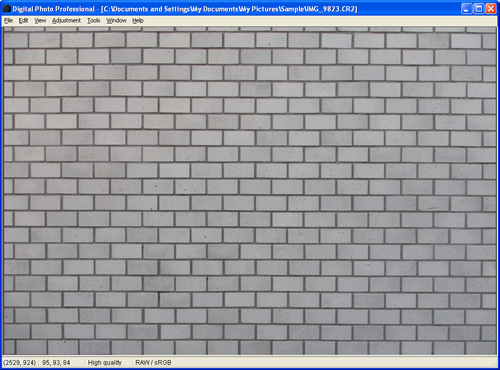
Thumbnail Image Displayed in the Main Window
|
About [Shooting distance information] slider
|
|
|
|
|
|
1.
|
When correcting RAW images taken with EOS-1Ds Mark III, EOS-1D Mark III, or EOS 40D, it is set automatically according to the shooting distance information saved in the image.
|
|
|
However, if EF 50mm f/1.4 USM, EF 85mm f/1.2L USM, or EF 28-70mm f/2.8L USM is used, it is set to the right end at the infinity position.
|
|
2.
|
You can then minutely adjust the distance by operating the slider while looking at the screen if the shooting distance is not infinite.
|
|
3.
|
When correcting RAW images taken with cameras other than the EOS-1Ds Mark III, EOS-1D Mark III, or EOS 40D, it is set automatically to the right end at the infinity position. You can then minutely adjust the distance by operating the slider while looking at the screen if the shooting distance is not infinite.
|
|
4.
|
The [Shooting distance information] slider is applied to all the correction items with check marks.
|
This completes the process of correcting lens aberration.