







Problems Receiving Faxes
Issue
Cause and Solution
- You cannot receive faxes if the power is turned off. Press the ON/OFF button to turn the power on.
- After a power failure or disconnecting of the power cord, press the ON/OFF button to turn the power on.
Either print or delete documents in memory to free up memory. Then ask the sender to resend the fax.
- Check the LCD for an error message. See "An Error Message Is Displayed on the LCD "
- Print the Activity report and check for an error.
Check that the telephone line is connected correctly to the Telephone Line Jack and that the telephone (or another external device such as an answering machine or a computer modem) is connected correctly to the External Device Jack. Refer to your setup sheet.
Preparing the Machine for Fax
Typical examples of connecting the machine are described below. The machine cannot send/receive faxes if the connection is incorrect. Connect the machine correctly.
If a paper size other than A4, Letter, or Legal*1 is loaded in the configured paper source, incoming faxes are not printed and are stored in memory. Change the paper in the configured paper source to A4, Letter, or Legal*1 size, then press the OK button on the machine. Load legal-sized*1 paper in the Rear Tray.
*1 Legal may not be available depending on the country or region of purchase.
Loading Paper
See[Loading Paper]
Check the receive mode setting (A), and change it to a mode suited to your connection if necessary.
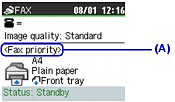
FAX only mode
TEL priority mode
FAX priority mode
DRPD
Network switch