







How do I apply a Picture Style File to an Image Using Digital Photo Professional
Solution
Follow the procedure below to apply a Picture Style file to an image.
1. Save the Picture Style file that you will apply to images on your PC.
2. Start Digital Photo Professional and display a RAW image.
3. In the main window, double-click the RAW image to which you will apply the Picture Style file to display the Edit Window and tool pallete.

REFERENCE
If the tool pallete does not appear, select [Tool Pallete] from the [View] menu in the Edit Window.
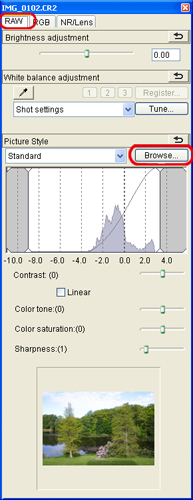
4. Select the [RAW] tab in the tool pallete to click the Picture Style [Browse] .
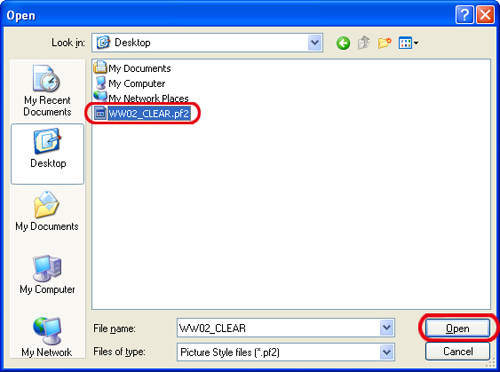
5. In the [Open] dialog box that appears, select the Picture Style file you will apply, and then click [Open].
6. The Picture Style file selected will be applied to the image.
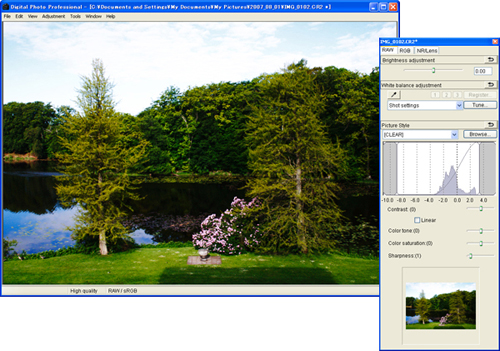
This completes to the process of applying a Picture Style file to an image.