




How do I burn images to a CD-R / RW using ZoomBrowser?
Solution
CAUTION
- [ZoomBrowser EX] from the supplied Solution Disk must be installed on your computer for this operation.
- Operations for Windows Vista are explained here. Images displayed or operation might differ slightly in Windows XP.
1. Place a CD-R / RW disc in the CD-R / RW drive. If a window like the one below appears, click ( ) or [Cancel] to close this screen.
) or [Cancel] to close this screen.
2. Double-click the [ZoomBrowser EX] shortcut icon on your desktop to start [ZoomBrowser EX].

If you cannot find the [ZoomBrowser EX] shortcut icon on your desktop, click [Start] ( ) > [All Programs] or [Programs] > [Canon Utilities] > [ZoomBrowser EX] and select [ZoomBrowser EX] to start ZoomBrowser EX.
) > [All Programs] or [Programs] > [Canon Utilities] > [ZoomBrowser EX] and select [ZoomBrowser EX] to start ZoomBrowser EX.
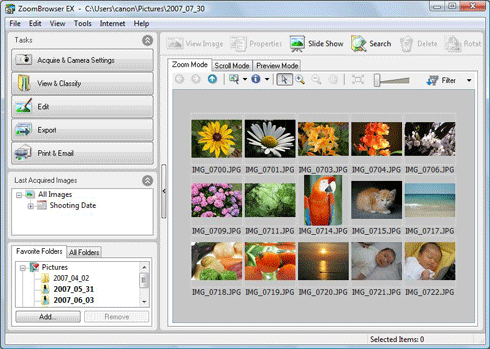
3. The following screen appears.

Click [Export].
4. The following screen appears.

From the items listed in the menu, click [Backup to CD].
5. The following screen appears.

 Select either [Favorite Folders] or [All Folders], and
  select the folder that contains the images to save the CD-R / RW disc. Images exported to [ZoomBrowser EX] are usually saved in [Pictures] or [My Pictures] folder.
 Click the image-selection button (
 ), and
  select [Select All].
If you wish to select individual images to record to the CD-R / RW disc, click the images while holding the [Ctrl] key on the keyboard.
 After selecting the images to save to the CD-R / RW disc, click [Specify Backup Settings].
6. The following screen appears.
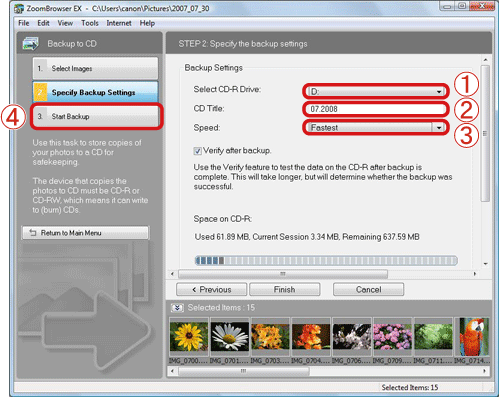
 Select the CD-R / RW drive connected to the PC.
 Enter a CD title (the title can be anything you like).
 Usually you can use the setting [Fastest]. If the [Speed] is slower, the chances of failure to write to the CD-R / RW disc are lower.
 Click [Start Backup].
The following screen appears when writing is completed.

7. The following screen appears when writing is completed.