








How to switch the paper source
Issue
Cause and Solution
NOTE
The screen shots used in this section are from Windows XP Professional.
1. Display the [Document Properties] dialog box.
For Windows 98/Me: Display the [Document Properties] dialog box or the [Printer Properties] dialog box.
NOTE
a. If you display the [Document Properties] dialog box from an application, you can specify the settings only for the job.
b. If you display the [Document Properties] dialog box from the [Printers and Faxes] folder or [Printers] folder (Windows 2000/XP/Server 2003); or if you display the [Printer Properties] dialog box from the [Printers] folder (Windows 98/Me), you can specify the default settings for all jobs.
c. For displaying the [Document Properties] dialog box or [Printer Properties] dialog box, see Related Information at the end of this page.
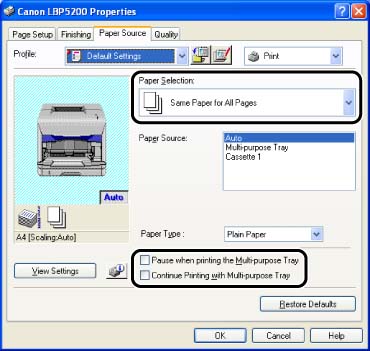
2. Display the [Paper Source] sheet, then select a paper source from [Paper Source].
Options to be specified differ depending on the setting for [Paper Selection].

3. Specify the following options as needed:
| Settings | Setting Value | Description |
| Paper Selection | Same Paper for All Pages | Feeds all the pages from the same paper source. If [Auto] is selected for [Paper Source] and the [Continue Printing with the Multi-purpose Tray] check box is selected, the printer automatically switches the paper source to the multi-purpose tray when Cassette 1 runs out of paper during printing. |
| Different for First, Others, and Last* | Paper can be selected for each page, such as for printing the front cover on a different type of paper. | |
| Different for First, Second, Others, and Last* | ||
| Transparency Interleaving* | Allows you to place paper sheets between transparencies. | |
| Pause when printing the Multi-purpose Tray | - | You can specify whether the printer should pause a job and display a message or continue the job when feeding paper from the multi-purpose tray. |
| Continue Printing with Multi-purpose Tray* | - | You can specify whether the printer should switch the paper source to the multi-purpose tray automatically when Cassette 1 has run out of paper during printing. |
* This option can be specified only when the optional 250-sheet paper feeder is installed.
4. Confirm the settings, then click [OK].