





Selecting an audio scene to match your surroundings (VIXIA HF G20 / LEGRIA HF G25)
Solution
You can have the camcorder optimize the audio settings of the built-in microphone by selecting the audio scene that matches your surroundings. This will greatly enhance the sense of "being there".
Alternatively, you can select [Custom Setting] in order to adjust the camcorder's various audio settings to your liking.
The procedure for setting audio scenes is explained below.
1. Set the mode switch to <M> or <CINEMA>.

2. Turn on the camcorder and make sure it is set to a recording mode.
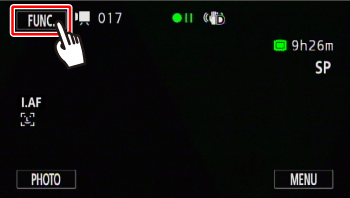
3. Touch [  ].
].
].
4.  Drag your finger up or down to choose
  [Audio Scene].
Drag your finger up or down to choose [Audio Scene].
5. Touch the desired option and then touch [X].

Options ( Default value)
Default value) Standard Standard | To record most general situations. The camcorder records with standard settings. |
 Music Music | To vibrantly record music performances and singing indoors. |
 Speech Speech | Best for recording human voices and dialog. |
 Forest and Birds Forest and Birds | To record birds and scenes in forests. The camcorder clearly captures sound as it spreads. |
 Noise Suppression] Noise Suppression] | To record scenes while reducing noise from wind, passing vehicles and similar ambient sound. Ideal for recording at the beach or in places with a lot of noise. |
 Custom Setting* Custom Setting* | Allows you to adjust the audio settings to your liking. |
] panel and the following settings in the [  ]: [Auto Wind Screen], [Microphone Attenuator], [Built-in Mic Freq. Response] (audio equalizer), and [Built-in Mic Directionality].
[Custom Setting] is not available in [AUTO] mode. After setting [Audio Scene] to [Custom Setting], if the camcorder is then set to [AUTO] mode this setting will change to [Standard].
]: [Auto Wind Screen], [Microphone Attenuator], [Built-in Mic Freq. Response] (audio equalizer), and [Built-in Mic Directionality].
[Custom Setting] is not available in [AUTO] mode. After setting [Audio Scene] to [Custom Setting], if the camcorder is then set to [AUTO] mode this setting will change to [Standard].This concludes the procedure for setting audio scenes.