








Types of recording modes and changing the recording modes (VIXIA mini / LEGRIA mini)
Solution
The camcorder offers three video quality options (bit rates*) for recording movies. Select 24 Mbps for higher video quality; select 4 Mbps for longer recording times or smaller file sizes.
NOTE
- Bit rate (measured in Mbps) indicates how much information is recorded in 1 second of video and therefore affects also the recording time available on the memory card.
- Depending on the device used, you may not be able to play back your recordings on other devices.
- The camcorder uses a variable bit rate (VBR) to encode video so the actual recording times will vary depending on the content of the scenes.
- Long scenes, whose video data exceeds 4 GB, will be recognized as multiple files on other devices.
IMPORTANT
For approximate recording times, see Approximate recording times (VIXIA mini / LEGRIA mini).
1. Set the power switch to ON to turn on the camcorder.

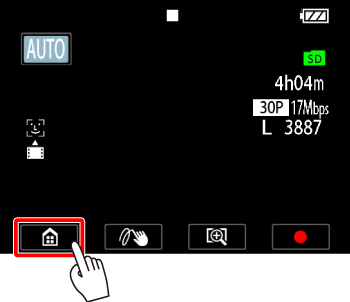
2. Touch [  ].
].
].
3.  Drag your finger left/right to bring the [Other Settings] menu into the center, then
  touch the icon to open it.
Drag your finger left/right to bring the [Other Settings] menu into the center, then touch the icon to open it.
4. Touch [  ].
].
].
5. Drag your finger up/down to bring [Video Quality] into the orange selection bar, then touch the button.
Drag your finger up/down to bring [Video Quality] into the orange selection bar, then touch the button.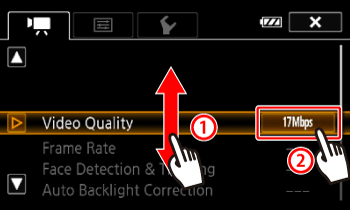
6. Touch the desired video quality mode.

7. Touch [  ].
].
].