





Including Your Own Reactions as You Shoot (Dual Capture) (PowerShot N100)
Solution
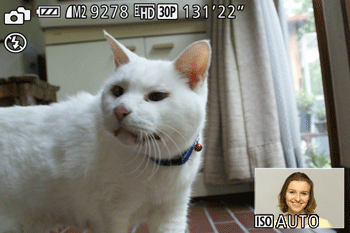
In Dual Capture mode [  ], you can include the shooter’s reactions as a clip accompanying shots as follows.
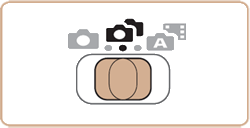
], you can include the shooter’s reactions as a clip accompanying shots as follows.1. Set the mode switch to [ ].
].
2. Shoot.
A still image or movie that includes the shooter is captured.
NOTE
- The sub-window can be moved and resized.
- The image resolution is [
 ] and cannot be changed.
 - The movie quality is [
 ] and cannot be changed.
 - The sub-window is in a different position than in [
 ] mode.
 - Images in the sub-window are reversed, like mirror images, and this is how the image is recorded. If you prefer non-mirrored display and recording, choose MENU > [
 ] tab > [Set Story Cam.] > [Non-Mirrored].
 - Story Camera settings are configured automatically. Adjustments to shooting settings do not apply to these images.
You can move and resize the sub-window using touch operations.
1. Touch the sub-window. The window outline changes from white to orange.
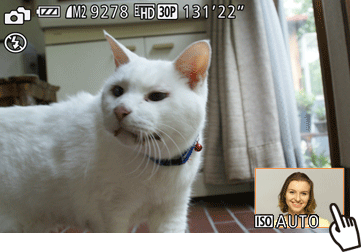
2. Move the sub-window.
After lifting your finger, touch the sub-window again and drag it to one of the positions shown in light gray. Lift your finger once the sub-window is in place.
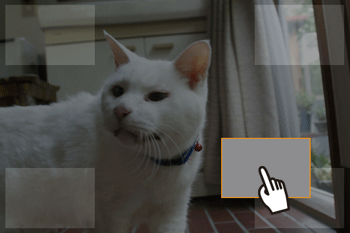
3. Resize the sub-window.
When the sub-window is selected as in step 1, you can touch the sub-window repeatedly to cycle between small, medium, and large. After a while, the shooting screen is displayed again.