







Magnifying the Image (EOS M3)
Solution
Pressing the [  ] button will zoom in and magnify the image. You can magnify images up to about 10x by continuing to hold the button down.
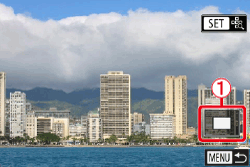
] button will zoom in and magnify the image. You can magnify images up to about 10x by continuing to hold the button down.- The approximate position of the displayed area (
 ) is shown for reference.
To zoom out, press the [  ] button. You can return to single-image display by continuing to hold it.
] button. You can return to single-image display by continuing to hold it.
To move the display position, press the [  ], [
], [  ], [
], [  ], [
], [  ] buttons. Press [
  ] to move to the focus frame area used when shooting.
], [ ], [ ], [ ] buttons. Press [ ] to move to the focus frame area used when shooting.To switch to other images while zoomed, turn the [  ] dial.
] dial.
REFERENCE
You can return to single-image display from magnified display by pressing the [  ] button.
] button.● Go to [Magnify (approx.)] in the [  - 4] tab of the menu to define the magnification used when pressing the [ ] button during single-image display. If set to [Reuse last magnification], the display will be magnified to the level before the [ ] button was pressed in the previous magnified image.
- 4] tab of the menu to define the magnification used when pressing the [ ] button during single-image display. If set to [Reuse last magnification], the display will be magnified to the level before the [ ] button was pressed in the previous magnified image.The LCD monitor is a touch-sensitive panel that you can use to magnify images with your fingers.
Touch the screen with two fingers together, then spread your fingers apart on the screen.
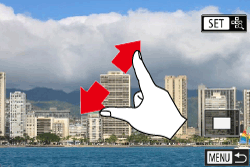
● Spread your fingers apart (pinch out) to zoom in.
● You can magnify images up to about 10x by repeating this action.
●To move the display position, drag across the screen.
● Pinch in to zoom out.
● Touch [  ] to restore single-image display.
] to restore single-image display.