




To macOS Sierra users
Solution
When you use the printer driver for OS X EI Capitan (10.11) with macOS Sierra (10.12), you may encounter the following problems:
- When you attempt to print, the "filter error" will be indicated and no printing can be performed.
- Printing stops midway.
- Print results are incorrect (some portions are missing, etc.).
Solutions are now being prepared.
For the time being, the problem may be solved in the following procedures:
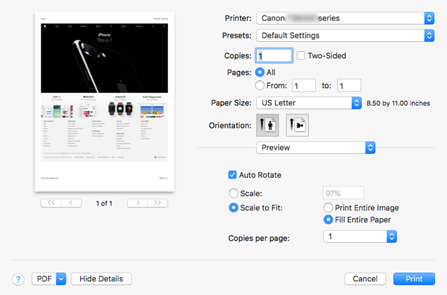
1. Select the paper size.
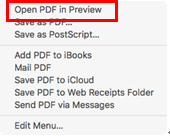
In the Print Dialog, from the [ PDF ] pull-down menu, select [ Open PDF in Preview ].

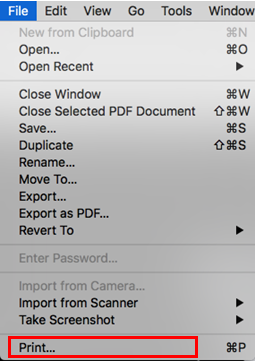
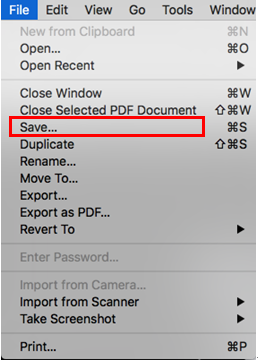
2. The OS Preview application will start. Select [ File ] > [ Save... ].
3. In the Format box, select [ TIFF ].
In the Resolution box, enter "600" and select [ pixels/inch ].
Select [ Save ].

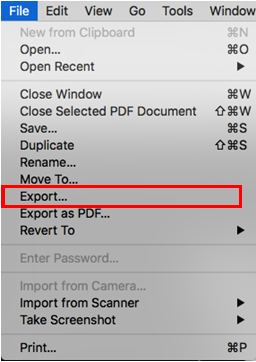
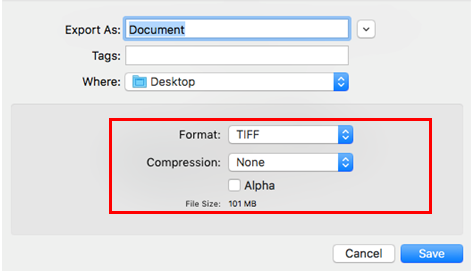
4. Select [ File ] > [ Export... ].
5. In the Format box, select [ TIFF ].
Deselect [ Alpha ].
Select [ Save ].
6. Select [ File ] > [ Print... ].
In the Print Dialog, select the same paper size as that you selected in step 1, then perform print settings in the printer driver.