







Using the Quick Setting Menu Screen (EOS M5)
Solution
Configure commonly used functions in the  (Quick Set) menu.
(Quick Set) menu.Note that menu items and options vary depending on the shooting mode or playback mode.
IMPORTANT
- Instructions in this section apply to the camera with [Shooting mode] set to [Program AE] (
 ).
).

1. Set the camera’s power switch to [ON].
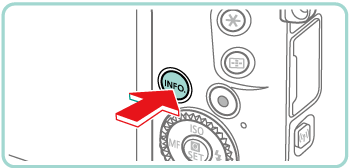
2. If the shooting functions screen ( ) is displayed, press the [INFO.] button to change the screen display
  ->
-> ->
-> as shown below.
) is displayed, press the [INFO.] button to change the screen display ->-> as shown below.: Custom display 1: Custom display 2: No information display: Shooting functions screen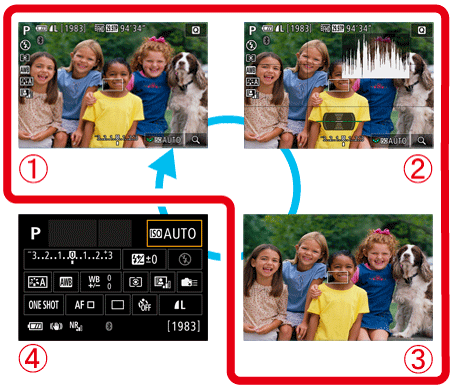
3. Press the [  ] button.
] button.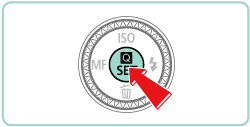
4. Press the [  ], [
], [  ] buttons to choose a menu item .
], [ ] buttons to choose a menu item .Available options are shown at the bottom of the screen.
are shown at the bottom of the screen.・[Picture style] has been selected in the example image below.
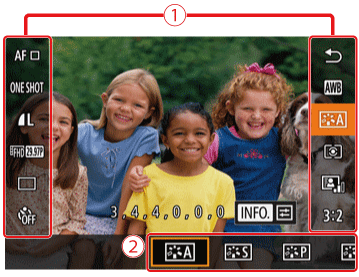
5. Press the [  ], [
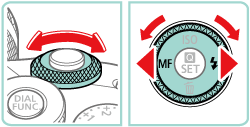
], [  ] buttons or turn the [
  ] or [
  ] dial to choose an option.
], [ ] buttons or turn the [ ] or [ ] dial to choose an option.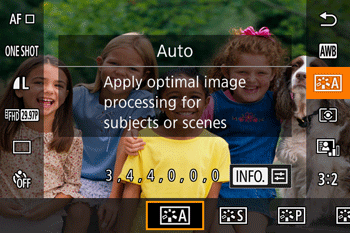
NOTE
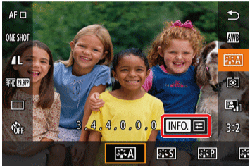
- Items labeled with a [INFO.] icon can be configured by pressing the [INFO.] button.

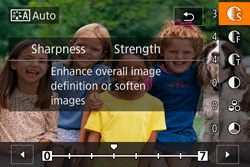
6. Press the [ ] button.
] button.The screen before you pressed the [ ] button in step 3 is displayed again, showing the option you configured.
] button in step 3 is displayed again, showing the option you configured.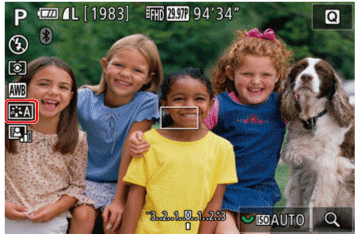
NOTE
To undo any accidental setting changes, you can restore the camera’s default settings (Restoring Default Camera Settings (EOS M5).
You can perform camera operations by touching the screen.
・The following section explains the setting procedures when [Picture Style] has been selected.
1. Touch [ ] in the upper right of the screen to access the Quick Set menu.
] in the upper right of the screen to access the Quick Set menu.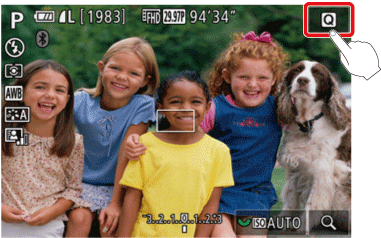
2. Touch a menu item and then an option to complete the setting.
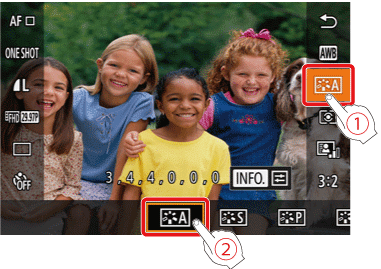
3. To return to the previous screen, touch the [  ] menu item, or touch the selected option again.
] menu item, or touch the selected option again.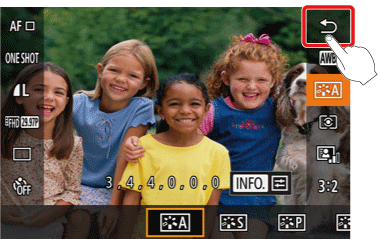
REFERENCE
You can access the screen for options labeled with a [INFO.] icon by touching [INFO.].
The INFO. Quick Control screen provides convenient, single-screen access to a variety of shooting settings.
1. Set the camera’s power switch to [ON].
2. Press the [INFO.] button a few times to display the INFO. Quick Control () screen.
) screen.
3. To view a description, choose an item by pressing the [ ] [ ] [ ] [ ] buttons.
] [ ] [ ] [ ] buttons.- Turn the [ ] [ ] dials to adjust a setting.
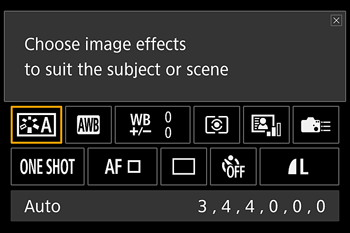
NOTE
The items that are displayed and configurable vary by shooting mode.
Some settings are configured on another screen that opens when you select the setting and press the [ ] button. Items labeled with [INFO.] on the second screen can be configured by pressing the [INFO.] button. To return to the INFO. Quick Control screen, press the [ ] button.
] button. Items labeled with [INFO.] on the second screen can be configured by pressing the [INFO.] button. To return to the INFO. Quick Control screen, press the [ ] button.REFERENCE
- You can also access setting screens by touching a setting on the INFO. Quick Control screen and then touching the setting again. To return to the INFO. Quick Control screen, touch [ ].
- To close a setting description, touch [
 ] in the upper right of the description.